How to Play Xbox Games on Phone: Remote Play & Cloud
Introduction
Gaming on the go has never been easier! Thanks to advancements in cloud technology and remote streaming, you can now enjoy your favorite Xbox games directly on your smartphone. Playing Xbox games on the phone provides unmatched convenience and flexibility, whether at home or on the move.
In this guide, we’ll explore the two primary methods for mobile Xbox gaming: Remote Play and Cloud Gaming. We’ll also provide step-by-step instructions to get you started, essential considerations to keep in mind, and tips to enhance your gaming experience. Read on to unlock the full potential of Xbox gaming on your phone!
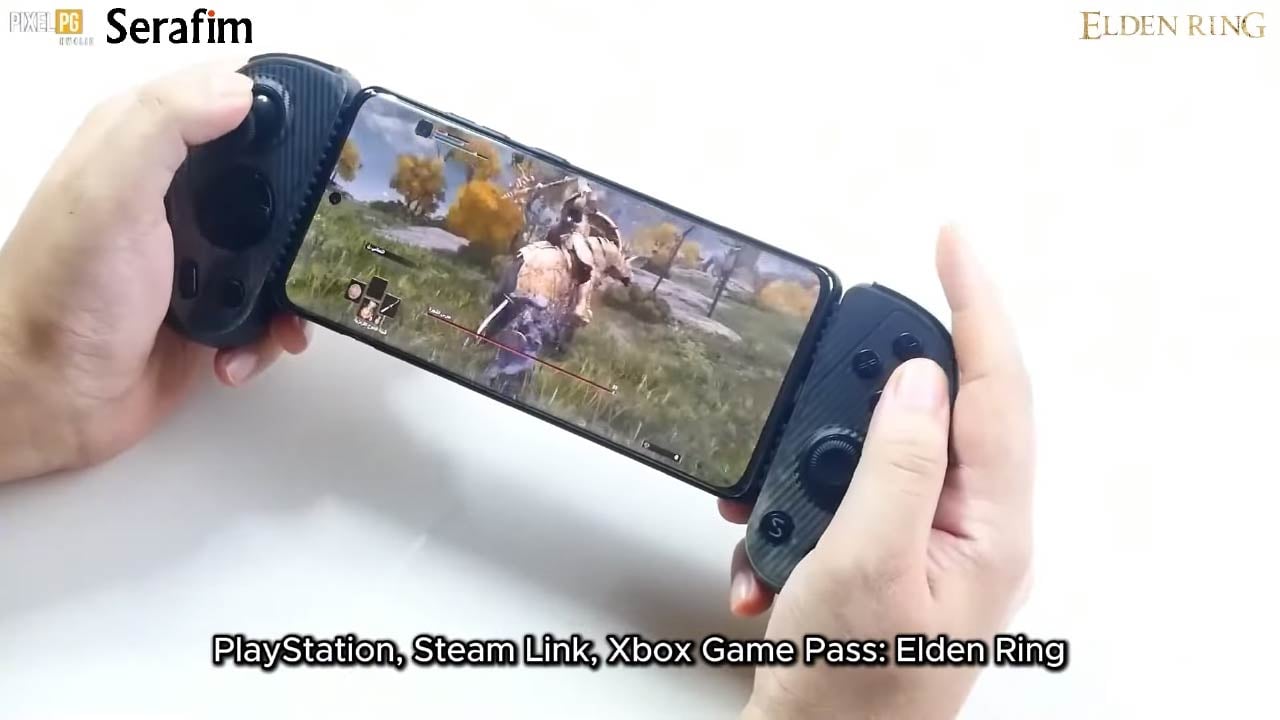
1. Playing Xbox Games on the Phone with Remote Play
1.1. What is Remote Play on Xbox?
Remote Play is a feature that allows you to stream and play games directly from your Xbox console to your phone. This method mirrors your console’s display onto your mobile device, enabling you to play games as long as your console is powered on and connected to the internet.
Requirements for Remote Play:
- An Xbox One, Xbox Series X, or Xbox Series S console
- A compatible Android or iOS device
- The Xbox app (available on Google Play Store or Apple App Store)
- A high-speed internet connection (5 GHz Wi-Fi recommended)
- A compatible Bluetooth or wired controller
1.2. How to Play with Xbox Remote Play on Phone: Step-by-Step
Follow these steps to set up and play Xbox games on your phone using Remote Play:
- Ensure Your Console is Set Up:
- Turn on your Xbox console.
- Go to Settings > Devices & Connections > Remote Features.
- Enable Remote Features and set Power Mode to Instant-On.
- Download and Sign in to the Xbox App:
- Install the Xbox app on your phone.
- Sign in with your Microsoft/Xbox account linked to your console.
- Connect Your Controller:
- Pair a Bluetooth-enabled Xbox controller or connect via USB.
- Initiate Remote Play:
- Open the Xbox app, navigate to the Console tab, and select Remote Play on This Device.
- Start Playing:
- Once connected, select your game and enjoy!
1.3. Things to Keep in Mind When Using Xbox Remote Play on Mobile
- Your Xbox console must remain powered on and connected to the internet.
- Only one user can play at a time via Remote Play.
- Some features like Microsoft Store purchases and backward compatibility are turned off during Remote Play.
- External apps (e.g., Edge browser, Hulu) are restricted while using Remote Play.
- The console will enter sleep mode after inactivity, so save your game progress frequently.
2. Playing Xbox Games on the Phone with Cloud Gaming
2.1. What is Cloud Gaming on Xbox?
Cloud Gaming (formerly Project xCloud) allows you to stream Xbox games directly from Microsoft’s servers to your phone. Unlike Remote Play, Cloud Gaming does not require an Xbox console—only a Game Pass Ultimate subscription and a stable internet connection.
Requirements for Cloud Gaming:
- An active Xbox Game Pass Ultimate subscription
- A compatible Android or iOS device
- A high-speed internet connection (10 Mbps minimum, 20 Mbps recommended for best performance)
- A compatible controller or touch controls (for select games)
- The Xbox Game Pass app (available on Google Play Store and Samsung Galaxy Store)
2.2. How to Play with Xbox Cloud Gaming on Phone: Step-by-Step
For Android Users:
- Download the Xbox Game Pass App from the Google Play Store or Samsung Galaxy Store.
- Sign in with your Xbox Game Pass Ultimate account.
- Connect Your Controller via Bluetooth or USB.
- Navigate to the Cloud Gaming Section and select a game.
- Start Playing Instantly!
For iPhone Users:
- Open Safari or another browser or install a Serafim Console app.
- Sign in to your Xbox Game Pass Ultimate account.
- Add Cloud Gaming to Your Home Screen for easy access.
- Connect a controller and start playing instantly!
2.3. How to Set Up Multiplayer Gameplay on the Phone with Xbox Cloud Gaming
- Open the Xbox Game Pass app and select a multiplayer-compatible game.
- Connect your controller and join an online session.
- To invite friends, open the Xbox social tab and start a party.
- Use the in-game multiplayer options to team up and play together.
2.4. Things to Keep in Mind When Using Xbox Cloud Gaming on Mobile
- Cloud gaming is available only in select regions (check Microsoft’s official support page for a list of supported countries).
- Only one account and one controller can be used per mobile session.
- On Apple devices, you may need to enable microphone/speaker access for voice chat.
- Sessions end automatically after inactivity, so keep playing to stay connected.
- Samsung Galaxy Store’s Xbox Game Pass app allows in-app purchases for additional content.
3. What Xbox Games Can You Play on Your Phone?
- Remote Play lets you access your entire game library.
- Cloud Gaming restricts you to Xbox Game Pass titles.
- Not all Xbox games are mobile-compatible—check Xbox’s official game list.
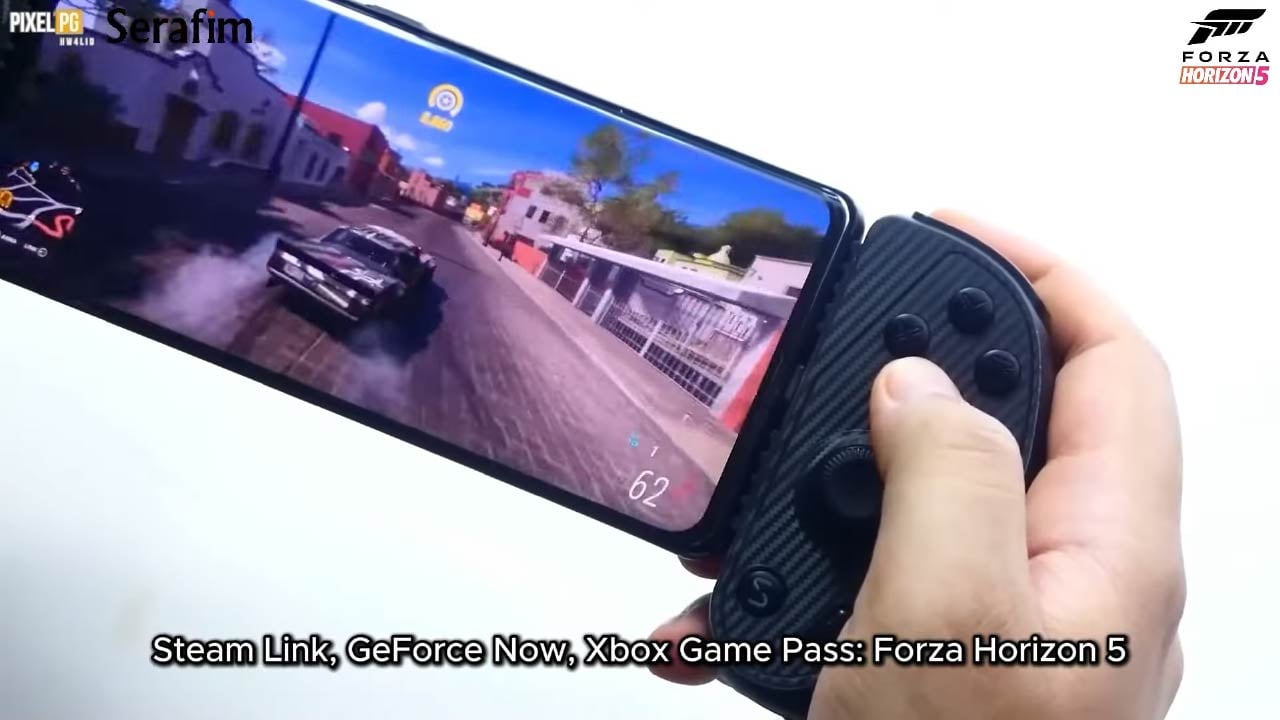
- Popular mobile-friendly Xbox games include:
4. Tips to Boost Xbox Gameplay Experience on Your Phone
- Use a 5 GHz Wi-Fi connection for a stable experience.
- Adjust graphics and controller settings for better performance.
- Use an ergonomic controller for a better grip and smoother gameplay.
- Try accessories like phone stands, battery packs, and gaming headphones.
5. Try the Best Xbox Game Controller for Mobile Devices: Serafim
To maximize your mobile gaming experience, consider using the Serafim S3 Cloud Gaming Controller. This high-quality controller is designed for seamless gameplay with Xbox Cloud Gaming, PlayStation Remote Play, and Steam Link. Key features include:
- Hall Effect Joystick for precision control
- Interchangeable Grips for comfort
- Extendable Design to fit most phones (even with cases)
- Low Latency USB Type-C/Lightning Connection
- Dedicated Screenshot & Recording Button
- Smooth Livestream Features


Order the Serafim S3 Cloud Gaming Controller today and take your mobile gaming to the next level!
https://serafimgaming.com/shop/serafim-s3/




